Google launched the Gemini app for Windows on September 10, 2026. The desktop app brings Gemini into a native Windows workflow with an Alt + Space shortcut, access to Gemini features, and support for tasks such as drafting, research, image creation and work across Google apps. Google says the app is available globally for Windows 10 and 11.
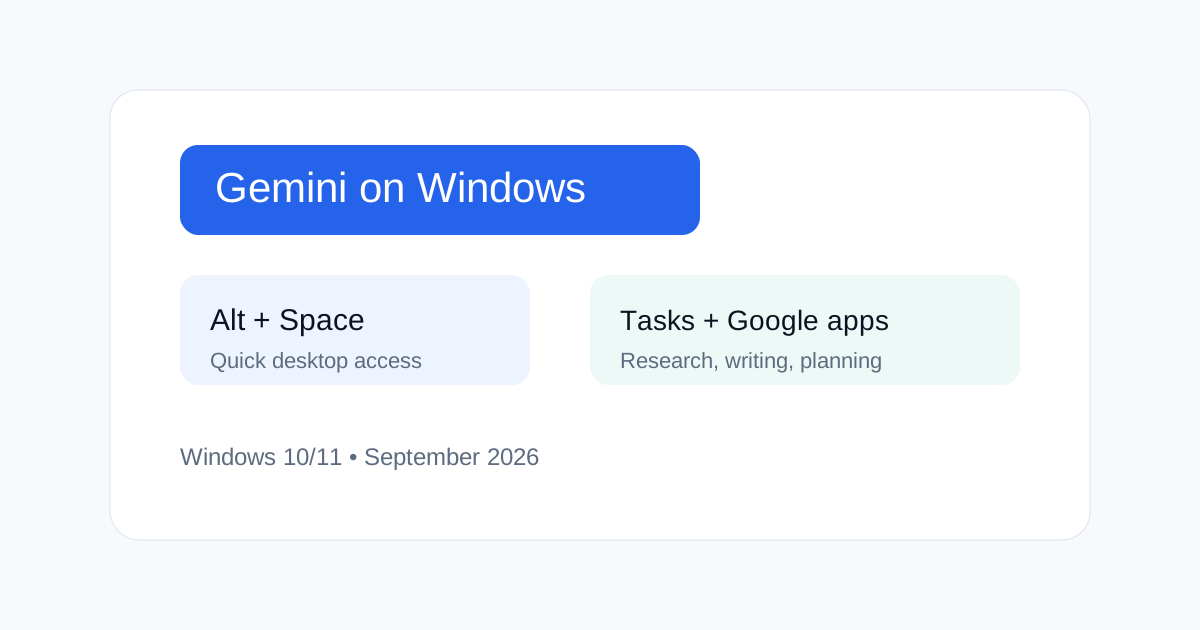
What Google launched on September 10
The main change is that Gemini is no longer limited to a browser tab on Windows. Google introduced a dedicated Windows app that can be opened over the current desktop with Alt + Space. That makes Gemini useful for quick questions as well as longer tasks without requiring users to switch windows.
Google also positions the app as a workspace for existing Gemini capabilities. The company says users can use Gemini Spark for multi-step work, pull information from Google apps such as Gmail and Drive, and create images or videos from the same desktop experience.
How the Alt + Space shortcut works
The shortcut is the simplest new workflow. Press Alt + Space while working in another Windows application and Gemini opens over the active screen. You can then ask a question, draft text, summarize content or request another supported task.
This is useful because the cost of asking Gemini is now closer to the cost of using a normal desktop shortcut. The quality of the workflow still depends on what context you provide. A shortcut does not automatically make every application visible to Gemini, and users should review the permissions and sharing controls of connected services.
What you can do from the Windows app
Google says the app supports the broader set of Gemini experiences already available to users, with a desktop shell around them. Common use cases include writing and rewriting, research, project planning, summaries, image generation and multi-step work.
| Use case | Why desktop access helps |
|---|---|
| Quick research | Open Gemini without leaving the current application |
| Writing | Draft or rewrite while another document stays open |
| Project work | Use a dedicated workspace for longer tasks |
| Creative work | Create images or videos from the desktop |
| Google app workflows | Pull supported context from Gmail or Drive |
Gemini Spark and multi-step work
One of the more important parts of the launch is the connection between the desktop app and Gemini's agent-style capabilities. Google describes Gemini Spark as a personal AI agent that can work on tasks over time. That makes the Windows app more than a chat window.
For long tasks, keep the goal specific and define what a successful result looks like. A useful desktop agent workflow should also have a clear permission boundary. Do not connect more apps or data than the task needs.
How the Windows app compares with using Gemini in a browser
The browser remains useful when you want to work across tabs, compare web sources or keep several services open. The Windows app is better suited to quick access and tasks where you want Gemini available beside another application.
The choice is therefore about workflow rather than model quality. The same service can be more useful when it is closer to the place where the work happens.
What Windows users should check before using it
First confirm that your PC is running Windows 10 or 11. Google says the new app is available globally. Next, review your Google account and any connected-app permissions before using Gemini for work data.
For business users, separate personal and work accounts where practical. Review whether the work account has restrictions on connected apps, data sharing or AI features. Desktop convenience should not remove normal account hygiene.
Does Gemini automatically see everything on your screen?
Do not assume that installing the app grants unrestricted access to everything visible on your desktop. The exact context available to Gemini depends on the feature, the information you provide and the permissions of any connected services. Treat screen content and connected-account data as separate access questions.
This matters for sensitive documents, internal dashboards, customer information and credentials. Keep private information out of prompts unless your organization permits that use.
How marketers and SEOs can use the Windows app
The practical advantage for marketers is lower friction. You can keep a browser, spreadsheet, CMS or analytics interface open and use Gemini when you need help with a specific task. Good examples include clustering a keyword export, rewriting a content brief, preparing a reporting summary or turning research notes into an outline.
For repeatable SEO work, keep the workflow structured. Give Gemini a defined input, explain the output format, and ask it to state uncertainty rather than invent missing data. This makes the desktop shortcut useful without turning it into an unreviewed automation.
What developers can take from the launch
The Windows launch shows a simple product pattern: put AI one shortcut away from the user's active context. The more interesting engineering question is how context and permissions are passed into the assistant while keeping the user in control.
Developers building their own desktop AI workflows should keep the model separate from sensitive operations. Use explicit tool permissions, visible approvals, logs and a clear boundary between local data and external services.
Common mistakes to avoid
Do not treat the native app as proof that Gemini can safely access every local file. Do not connect every Google service just because the option exists. Do not assume an agent-style task is correct simply because it completed without an error.
For important business work, keep the original source open and verify the result. The desktop app reduces switching costs, but it does not remove the need for review.
Related ToolboxKart guides
For Gemini content workflows, read the Gemini Gem for SEO Content guide. For model and coding choices, compare Claude vs ChatGPT vs Gemini for SEO and Coding. For the wider agent architecture, see the AI Agent Architect guide. For everyday AI execution workflows, read Claude Cowork: How to Use It for Daily Work.
New guides from September 12
For today's desktop workflow, also see Gemini Windows App Workflow Guide, SEO Zero-Click Search Strategy, and Meta Muse Personal AI Agent Security.
Frequently asked questions
Is the Gemini app available for Windows?
Yes. Google says the Gemini app for Windows launched on September 10, 2026 and is available globally for Windows 10 and 11.
What shortcut opens Gemini on Windows?
Google says you can press Alt + Space to open Gemini over your active work.
Can Gemini work with Google apps?
Google says Gemini can pull information from supported Google apps such as Gmail and Drive for certain workflows.