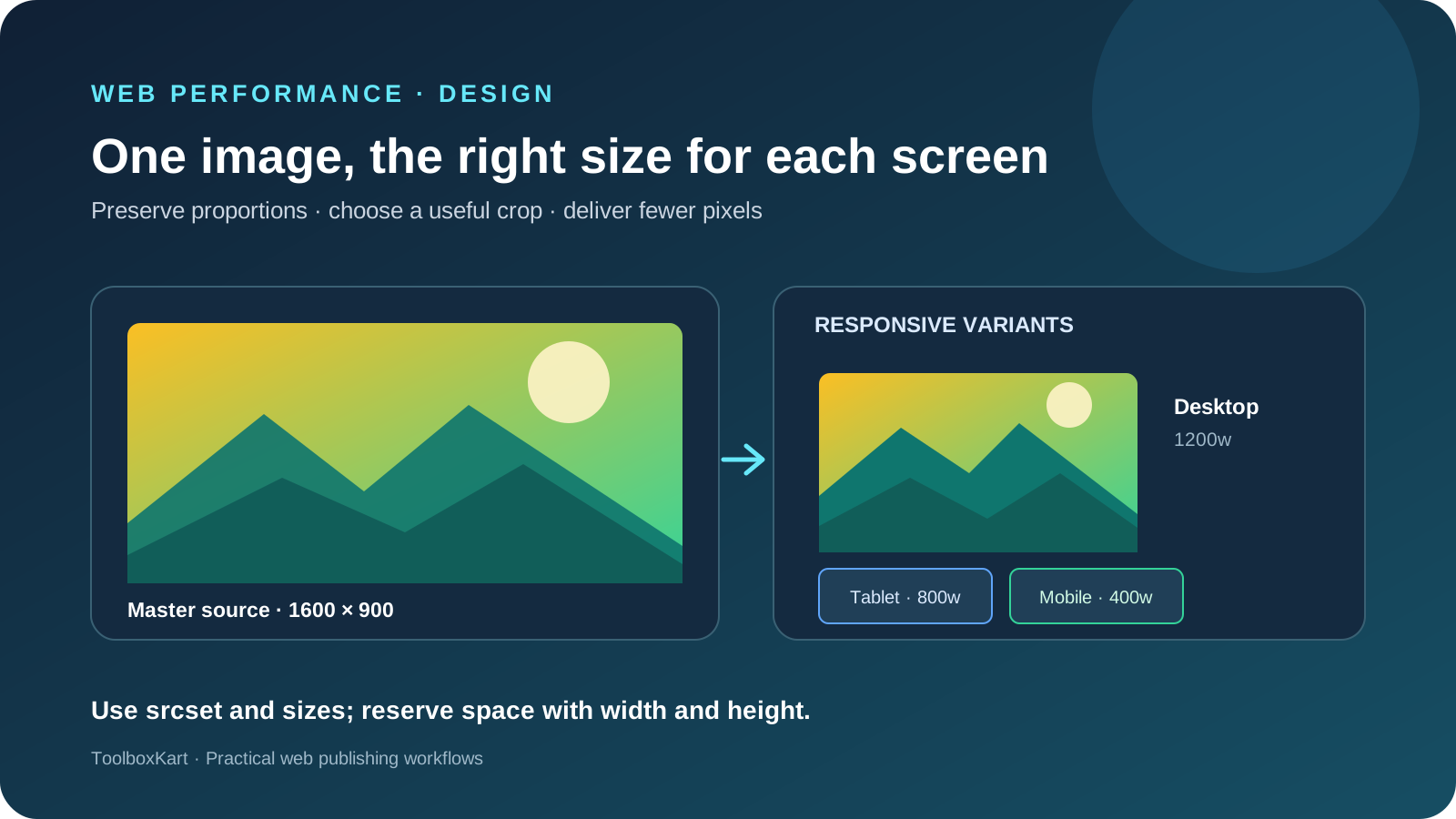
Images can look sharp on a desktop and still be slow, cropped badly or oversized on a phone. Preparing responsive images means choosing the right crop, exporting sensible dimensions, letting the browser select a suitable source and giving the layout enough information to reserve space before the file loads. These steps improve the experience without requiring every page to use the same image size.
Start with the image's job
Before exporting, decide where the image will appear. A product photo, editorial illustration, profile portrait and social-preview graphic have different framing needs. The best source for a wide article header may be the wrong crop for a square card or a narrow mobile layout.
List the places where the image will be used and record the approximate display width, aspect ratio and focal point for each. If the same source must serve multiple layouts, plan crops intentionally instead of allowing an automatic crop to cut off a face, product detail or text embedded in the artwork.
Choose dimensions and preserve the aspect ratio
Start with the largest size the design actually needs, then prepare smaller variants for narrower layouts. A 400-pixel-wide card rarely needs to download a 3000-pixel-wide source unless a high-density display or zoom interaction justifies it. On the other hand, an image that is smaller than its display area may look soft when enlarged.
Keep the source's aspect ratio unless the design intentionally calls for a different crop. You can use our aspect-ratio calculator to work out matching dimensions. For example, if a 1600 × 900 source is displayed at 800 pixels wide without cropping, its height should be 450 pixels. If the target container is square, create a deliberate square crop rather than stretching the original into a square.
Export an appropriate format
Choose a format based on the image and the site's delivery pipeline. WebP or AVIF can reduce file size for many photographic and illustrated images, while JPEG and PNG remain useful for compatibility or specific image characteristics. SVG is often suitable for simple vector diagrams and icons. Do not assume that one format is always best: compare visual quality at the size visitors will see, including text edges, gradients and fine detail.
Use a consistent export process and keep a source copy so the image can be recropped or re-exported later. If a content delivery system automatically converts formats, verify what it actually serves to the browser rather than assuming the source file extension tells the whole story.
Provide responsive sources with srcset and sizes
The HTML srcset attribute lets you provide several versions of the same image. The browser can select a candidate based on its available pixel width and the display density. The sizes attribute describes how wide the image is expected to appear at different viewport sizes, helping the browser choose an appropriate file.
Use variants that reflect real layout breakpoints. For example, an image displayed nearly full-width on a phone but in a two-column article layout on a desktop may need a small mobile source, a medium tablet source and a larger desktop source. Do not add many nearly identical files without a reason; extra variants increase maintenance work.
Keep a valid src fallback even when using srcset. Test the rendered page at several viewport widths and on a high-density display to confirm that the browser selects a suitable candidate and that the crop remains useful.
Set width and height to prevent layout shifts
Include the intrinsic width and height of the selected source in the HTML. Browsers can use that ratio to reserve space while the image downloads, reducing unexpected movement when the image appears. CSS can then scale the image to fit its container while preserving the ratio.
img {
  max-width: 100%;
  height: auto;
}
For fixed-ratio cards, choose a suitable container ratio and use object-fit: cover only when cropping is intended. Use object-position to keep the important subject visible. If the full image must remain visible, object-fit: contain may be a better choice, even if it leaves empty space around the image.
Write useful alt text
Alt text should communicate the image's meaning in the context of the page. Describe the relevant subject or function rather than listing every visible detail or repeating the surrounding heading. For example, a diagram explaining a workflow should describe the workflow, while a product image may need the product name and the detail that distinguishes the image.
Decorative images that add no information should generally use an empty alt attribute. Do not use a filename as alt text, and do not stuff keywords into the description. If text is embedded in an image, provide the important information in nearby page text as well.
Load important images at the right time
Images below the initial viewport can often use loading="lazy" so the browser waits until they are near the visible area. Avoid lazy-loading the main hero or other image that is likely to be the page's largest contentful paint element. Web.dev recommends reserving eager loading and high fetch priority for genuinely important images rather than applying them to every image.
Measure the page before and after changes. Look at the actual image request, transfer size, layout stability and loading behavior on a slower connection. If the browser still downloads the largest variant on mobile, review the sizes value and the image's rendered width.
Validate social preview images separately
An article's Open Graph image is not automatically the same thing as its responsive in-page image. Social platforms may request the URL independently and can cache a previous preview. Confirm that the selected preview image has the intended crop, is accessible to crawlers and matches the page's canonical identity.
For a repeatable metadata check, see our Open Graph metadata audit workflow. It covers checking image URLs and separating a page-side metadata issue from a stale social-preview cache.
A practical image QA checklist
- Record the image's purpose, display sizes and required crop.
- Export a source at the largest useful dimensions without unnecessary pixels.
- Compare suitable image formats at the actual display size.
- Provide responsive variants and verify
srcsetandsizes. - Set width and height and check that the layout does not jump during loading.
- Write meaningful alt text, or use an empty alt attribute for purely decorative images.
- Lazy-load below-the-fold images and keep the main hero image discoverable early.
- Test mobile and desktop layouts, image sharpness, file size and social previews.