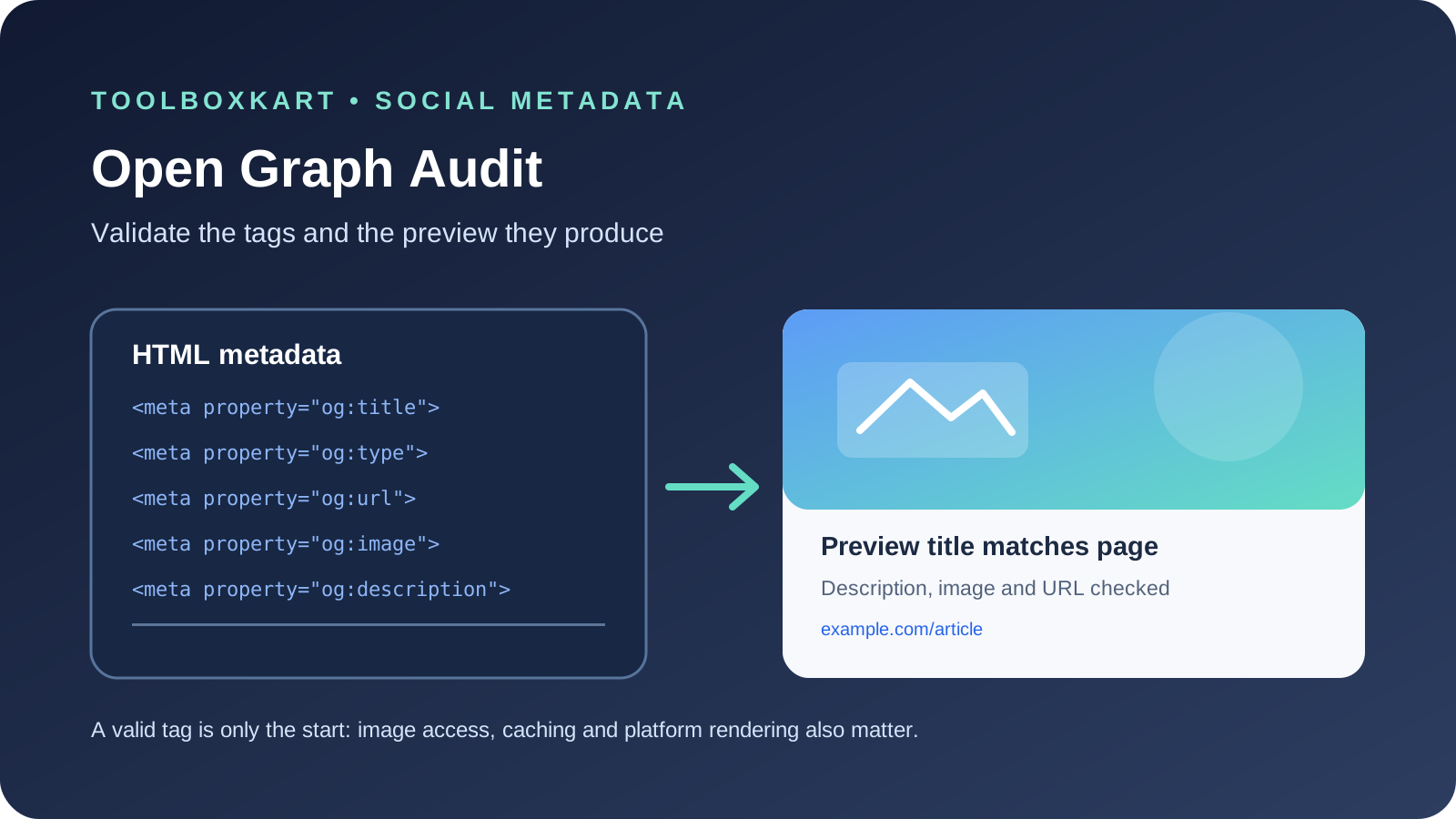
An Open Graph audit checks whether a page exposes the metadata that social and messaging platforms use to build link previews. The core properties are og:title, og:type, og:image and og:url; the protocol also supports og:description and image details such as dimensions and alt text. A page can have valid HTML and still produce a poor preview if the image URL is inaccessible, the values describe a different page or a platform is showing cached metadata.
1. Define the expected preview for each page type
Before crawling a site, decide what a good preview should contain for articles, product pages, category pages and landing pages. The title should identify the page, the description should summarize the actual content, the image should be relevant, and the URL should represent the intended public address. Do not reuse one generic image or title across pages simply to fill the fields.
For an article, for example, keep the social title consistent with the headline without requiring it to be character-for-character identical. Use a concise description that gives readers a reason to open the page, and choose an image that remains understandable when cropped to a small card. The exact crop and rendering can vary by platform and placement.
2. Check the core Open Graph properties
The Open Graph protocol defines four required properties for every object:
og:title: the title that should represent the page when shared.og:type: the object type, such aswebsiteorarticle, selected to match the content.og:url: the permanent URL that identifies the object in the graph.og:image: the image URL that represents the object.
Also check og:description, and where an image is specified, consider og:image:alt, og:image:width, og:image:height and og:image:type. The protocol documents these as structured image properties. Use absolute HTTPS URLs for production assets and ensure the declared values match what a visitor sees on the page.
3. Compare the URL with canonical and page identity
Compare og:url with the page's preferred canonical URL. Look for hostname differences, HTTP versus HTTPS, parameters that should not be shared, duplicate slash variants or old URLs left behind after a migration. Open Graph identity and search canonicalization are related but not identical concepts; they should not point to unrelated destinations.
For pages with several URL variants, choose the preferred public URL deliberately and keep internal links, canonical markup and Open Graph values consistent. Do not assume that a correct canonical tag automatically fixes a stale or incorrect og:url.
4. Verify the image as a crawler would see it
Fetch each image URL directly. Confirm it returns a successful response, serves an image content type, does not require a logged-in session and is not blocked by access rules. Check the actual image dimensions and file size, and verify that the important subject remains visible after common social-card crops. An image that works only in a browser session may fail when a platform crawler requests it.
Do not rely on a local file path such as /assets/share.jpg as the final metadata value unless the page's rendered output resolves it to a full public URL. The protocol uses an image URL; a complete absolute URL is the clearest way to make that destination unambiguous.
5. Run a crawl and group the failures
Export the page URL, title, meta description, canonical, og:title, og:description, og:type, og:url, og:image and image response status. Then group issues by type rather than reviewing every URL manually.
- Missing fields: required properties absent from the page head.
- Identity mismatch: Open Graph URL and canonical refer to different page variants.
- Duplicate metadata: many unrelated pages use the same title, description or image.
- Broken image: the URL fails, redirects unexpectedly or returns non-image content.
- Content mismatch: preview text or artwork belongs to a different page.
- Stale preview: source markup is correct, but a platform still displays an older card.
Prioritize broken images and wrong destinations first, then fix missing and duplicated metadata. After changes, recrawl the affected URLs and inspect the rendered head, not only the template or CMS fields.
6. Separate source errors from cache behavior
If the HTML contains the correct tags but a social preview is old, first verify the public response and image URL from outside your logged-in browser. Then use the relevant platform's official sharing debugger or preview refresh mechanism, if available, to request a new fetch. Do not keep changing correct metadata in an attempt to fix a cached result.
Keep a record of the URL tested, timestamp, returned status, current metadata and preview result. This makes it easier to distinguish a deployment issue from platform caching. Different platforms can fetch at different times and render the same metadata differently.
7. Validate changes before publishing
For a template-level fix, test a representative article, product page and landing page before rolling it across the site. Confirm that values are escaped correctly, no tags are duplicated, and page-specific metadata is not replaced by a global default. ToolBoxKart's Meta Tag Generator can help draft the tag markup, but you should still verify the final rendered HTML and live image URL.