A CSV file can look correct in a text editor and still import incorrectly into a spreadsheet, reporting platform or database. Common causes include inconsistent column counts, ambiguous dates, missing headers, unexpected delimiters, duplicate records and identifiers that get converted into numbers. A short validation pass before import helps catch these problems while the original file is still easy to compare.
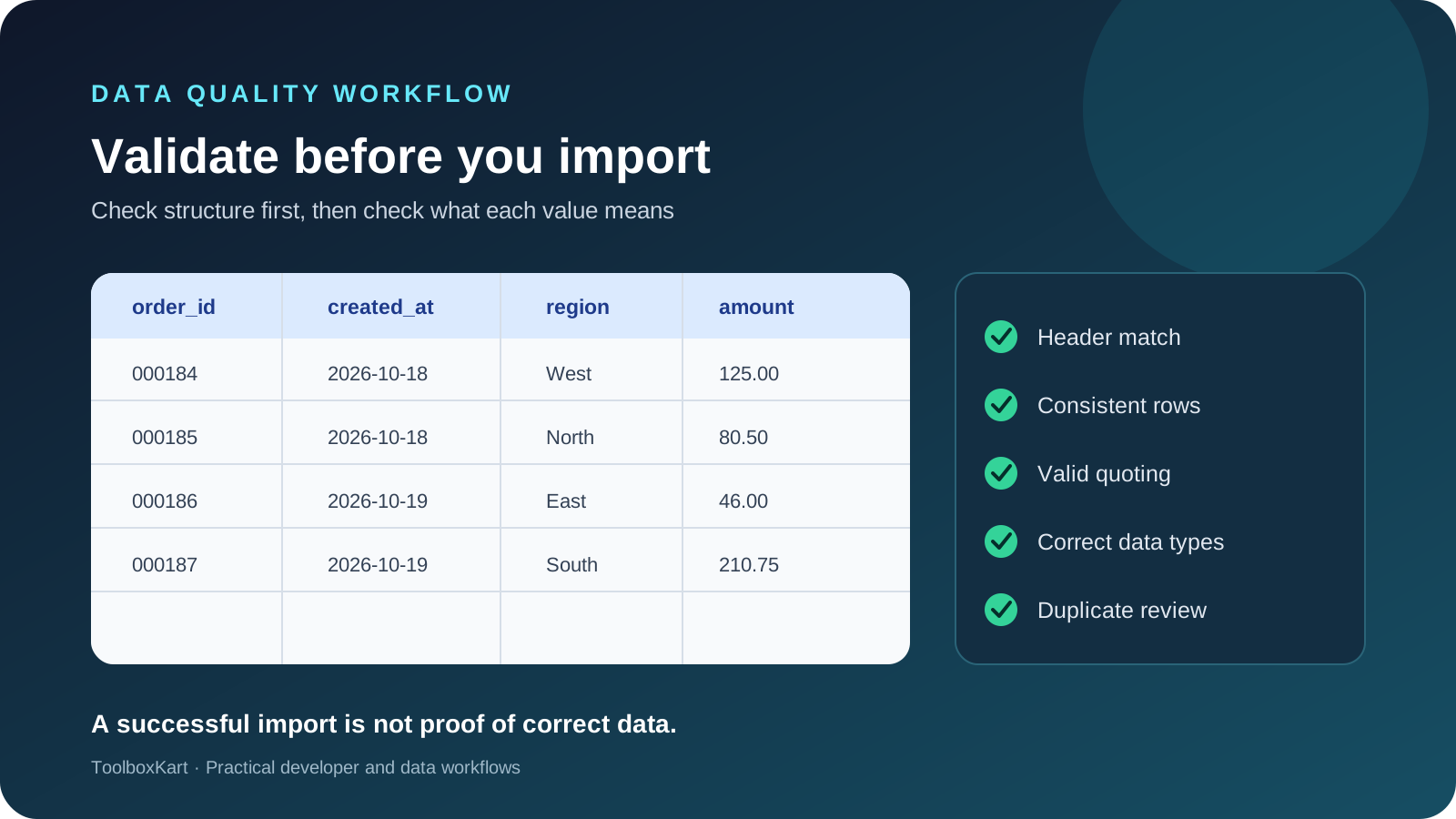
Start with the CSV format, not the spreadsheet view
CSV stands for comma-separated values, but the format is more than a list of words separated by commas. Fields can be quoted, a quoted field can contain a comma or line break, and a quote inside a quoted field is represented by two quote characters in the common format described by RFC 4180. Spreadsheet and programming tools can also differ in how they interpret separators, line endings, encodings and data types.
Inspect a small sample of the original text before opening the file in a spreadsheet. Check which character separates fields, whether text values are quoted, whether the file begins with a header row and whether a field can contain line breaks. Do not count commas in a raw line as a reliable field count when quoted fields may contain commas.
1. Confirm the header row
Decide whether the first row contains column names. If it does, check that every expected column is present, names are not blank and duplicate headers are not hiding separate fields. Use stable, descriptive names such as order_id or created_at instead of headers that depend on their position, such as column_3.
Compare the header against the destination system's import template. A file can be valid CSV but still be incompatible with a destination that expects different names, a specific column order or a required field. If the import is recurring, save the expected header as part of the workflow rather than relying on memory.
2. Check that every record has the expected number of fields
Count the fields in each parsed record and compare the count with the header. A row with too few or too many fields can shift values into the wrong columns or cause an import to fail. Check both the first and last records, and inspect any row that differs from the expected shape.
Use a CSV-aware parser when possible. Splitting every line on a comma is not enough because quoted values can contain commas and line breaks. Python's standard csv module documentation explains how readers and writers handle delimiters, quoting and dialect settings.
3. Review quotes, delimiters and encoding
Look for unclosed quotation marks, mixed delimiters and inconsistent escaping. A value such as "Research, development" should stay in one field when commas are the delimiter. If a value contains a quotation mark, the file must encode it in the form expected by the parser. A single malformed quoted field can make later rows appear to have the wrong number of columns.
Also confirm the character encoding. UTF-8 is a common choice for interchange, but the receiving application may have specific expectations. If accented characters, currency symbols or non-Latin text become replacement characters, reopen the original and import it with the correct encoding instead of editing the damaged spreadsheet copy.
4. Validate dates, numbers and identifiers
CSV itself does not define a universal type for every column. The same text value may be interpreted as a date, decimal, integer or string depending on the importing application and its locale settings. That is why a file can import without an error and still change the meaning of the data.
- Dates: choose one unambiguous format, document it and test values around day/month boundaries. Do not mix formats such as month-first and day-first in one column.
- Numbers: decide whether the decimal mark is a period or comma, and whether thousands separators are present.
- Identifiers: keep values such as postal codes, account codes and product IDs as text when leading zeros or exact characters matter.
- Booleans and categories: standardize allowed values instead of mixing forms such as
yes,Y,trueand1without a mapping. - Blank values: decide whether an empty field means unknown, not applicable or intentionally empty. Those meanings should not be silently combined.
Microsoft notes that Excel can interpret CSV columns using the current default data-format settings. When a column must preserve leading zeros or a specific date format, use the import workflow that lets you choose the column types rather than relying on a double-click open.
5. Find duplicate and incomplete records
Duplicate rows may be valid repeated events or accidental copies. Define a business key before removing anything. For example, an order line might be unique by order ID plus line number, while a customer list might be unique by a customer ID. Do not assume that identical names mean duplicate people or that identical rows are always invalid.
Check required fields, unexpected blank cells, impossible values and outliers. If a field is meant to contain a non-negative quantity, flag negative values for review. If every record should have a timestamp, report missing or unparsable timestamps rather than quietly filling them with the current date.
6. Import with explicit settings
In Excel, the Data tab's From Text/CSV workflow provides a preview and options before loading the file. It is useful when you need to choose the delimiter, inspect the inferred types or transform a column before it reaches the worksheet. Google Sheets also provides an import flow where you can choose how imported data should be placed and which separator to use.
Before committing the import, compare a few known rows from the original file with the imported table. Include a row with a comma inside a quoted value, a row with a blank field, a date near a month boundary and an identifier with leading zeros. Those examples often reveal conversion problems that a simple row count misses.
7. Keep a repeatable validation report
For recurring imports, produce a short report containing the source filename, row count, column count, header match, invalid-row count, duplicate-key count, type-check results and the time of validation. Keep a separate list of rows that need review so the person importing the file can fix the source or document an exception.
- Save an untouched copy of the source CSV.
- Validate the header and parsed field counts.
- Check encoding, quotes and delimiter settings.
- Apply explicit rules for dates, numbers, identifiers and blanks.
- Report duplicates and missing required values.
- Import a test sample and compare it with the source.
- Record the result and keep the validation rules with the workflow.
If your pipeline first produces structured JSON from an AI model and then converts it into a CSV, see our guide to validating LLM JSON output before the conversion step.
Common CSV validation mistakes
Do not assume that a successful import means the data is correct. Do not open and resave the only copy before checking how the application interprets it. Do not delete duplicate-looking records until you know what makes a record unique. And do not rely on line-by-line comma splitting when quoted values can contain delimiters or newlines.
The goal is to catch structural errors and data conversions before they affect a report or downstream process. A simple, repeatable checklist is usually more reliable than trying to repair a spreadsheet after the values have already changed.
Sources
- IETF RFC 4180: Common Format and MIME Type for CSV Files
- Microsoft Support: Import or export text and CSV files
- Python documentation: csv — CSV File Reading and Writing