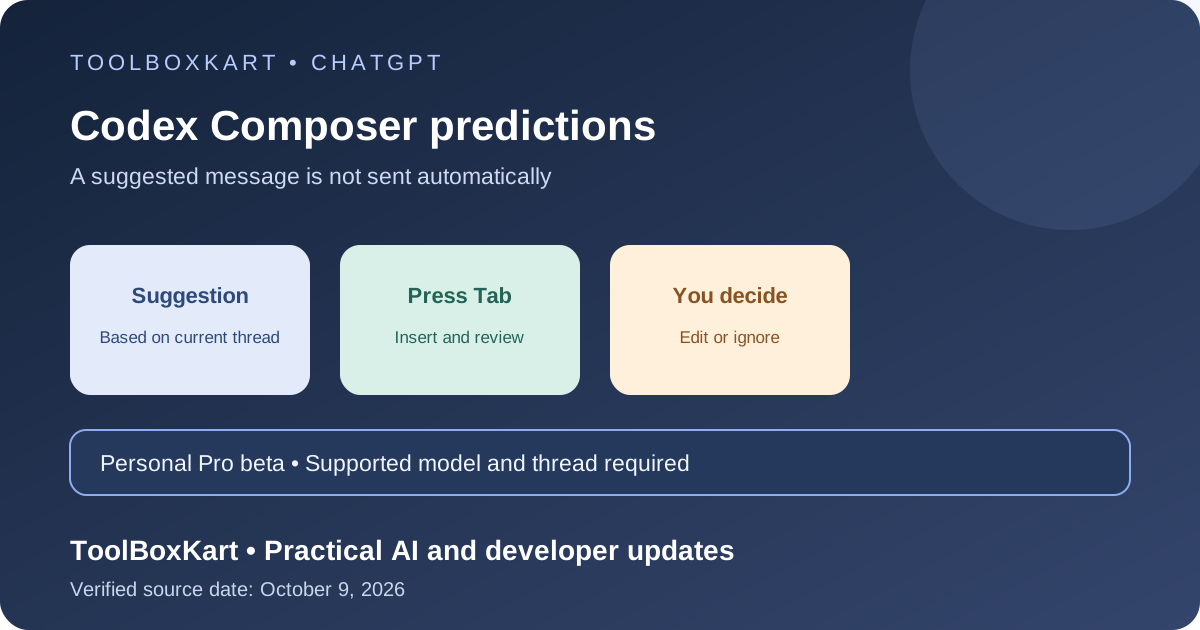
Codex Composer predictions is a beta feature that suggests a possible next message after Codex finishes a response. It is available to adults aged 18 and older with a personal ChatGPT Pro account in the latest Codex desktop app, using GPT-6 Astra or GPT-6.1 Sol in local or SSH threads. You can accept, edit or ignore a suggestion; accepting it does not send the message automatically.
What Composer predictions actually do
After Codex completes a response, it may place a suggested follow-up in the message box. The suggestion is based on the conversation in the current thread. It can help when you already know the next step, such as asking Codex to add a test after it fixes a bug or to explain a changed function after a refactor.
This is different from faster steering. Steering changes how you guide a task that is already running; Composer predictions suggest text for your next message after a response is complete. If you need to correct a running task, our Codex faster-steering guide covers that separate feature.
Who can use the beta?
| Requirement | What OpenAI currently lists |
|---|---|
| Account | Personal ChatGPT Pro |
| Age | 18 or older |
| App | Latest Codex desktop app |
| Thread | Local or SSH thread |
| Models | GPT-6 Astra or GPT-6.1 Sol |
| Availability | All supported regions, during the beta |
The feature is not a general ChatGPT text-completion option. OpenAI's help page says it is not available in Chat on the web or desktop, and it is not available on other plans during the beta. The page notes that predictions may appear in local Work threads, but the documented beta eligibility is personal Pro in Codex desktop.
How to use a prediction
- Update the Codex desktop app and sign in to the eligible personal Pro account.
- Open a local or SSH thread and select GPT-6 Astra or GPT-6.1 Sol.
- Send a message and wait for Codex to finish its response.
- If a suggestion appears in the composer, press Tab to insert it.
- Read the text, edit it to match your goal, and send it only when you are ready.
You can also ignore the suggestion and type normally. You do not need to wait for a prediction before continuing. OpenAI says predictions can take several seconds to appear and may take longer in long conversations.
Turn predictions off or troubleshoot them
Predictions are on by default for eligible users. To disable them, open Settings in the Codex desktop app, go to General → Composer, and turn off Show predictions. You can return to the same setting to turn them on again.
If no suggestion appears, check the app version, setting, account plan, thread type and selected model. A prediction does not appear after every response, so one missing suggestion is not proof of a fault. If the feature still does not work, report the issue to OpenAI Support with the model and app version; remove personal or confidential information from any screenshot.
Billing and usage limits
During the beta, generating predictions does not count toward Codex usage limits or consume credits. OpenAI says the prediction feature has no additional charge for eligible Pro users during this period. However, once you send a message, including text inserted from a prediction, normal Codex usage limits and billing apply.
Do not treat the beta terms as a promise about future pricing. OpenAI has not stated in this help article how the feature will be billed after the beta.
How predictions use context and what to check for privacy
OpenAI says Composer predictions use the conversation in the current thread. Context from earlier work or connected apps can influence a suggestion if that information is already present in the thread. Predictions do not independently look up memories or retrieve information from connected apps, and they can be used with memory turned off.
Messages you choose to send remain subject to Codex retention and ChatGPT data-control policies. A prediction is not a security review: it may suggest a wrong command, skip a test or misunderstand your intent. Before sending a suggested instruction, check whether it asks Codex to read private files, change permissions, run a destructive command or contact an external service. Review the resulting diff and tests before accepting code changes.
Practical example
Suppose Codex has fixed a validation bug. A useful next message might ask it to add a regression test and explain the edge cases. A prediction can save typing, but you should still confirm that it names the right function and test file. If the suggestion asks for a broad refactor when you only wanted a small fix, edit it or ignore it.
For broader developer context, see our OpenAI DevDay developer recap.
Frequently asked questions
Does pressing Tab send the message?
No. Tab inserts the suggested text into the composer. Review or edit it, then send it yourself.
Do predictions use extra Codex credits?
Generating predictions does not consume credits or count toward Codex usage limits during the beta. Sending the message follows normal usage rules.
Can I use Composer predictions on the free plan?
OpenAI currently lists personal ChatGPT Pro users aged 18 or older for this beta. Other plans are not included in the documented eligibility.
Sources
- OpenAI Help Center: Composer predictions in Codex (updated October 9, 2026).
- OpenAI Help Center: ChatGPT release notes (October 9, 2026 entry).